
SFTP Access
SFTP provides a traditional file transfer protocol for accessing your licensed datasets. This method is ideal for manual browsing and downloading of files using familiar tools.
Prerequisites
Section titled “Prerequisites”To access datasets via SFTP, you need:
- An access key ID and secret (created in Settings → Access Keys)
- A client that supports SFTP (e.g. Filezilla)
Generating an access key
Section titled “Generating an access key”In the Access Keys tab, click the New access key button in the top right. Fill out the form to create an access key with a name and expiry date.
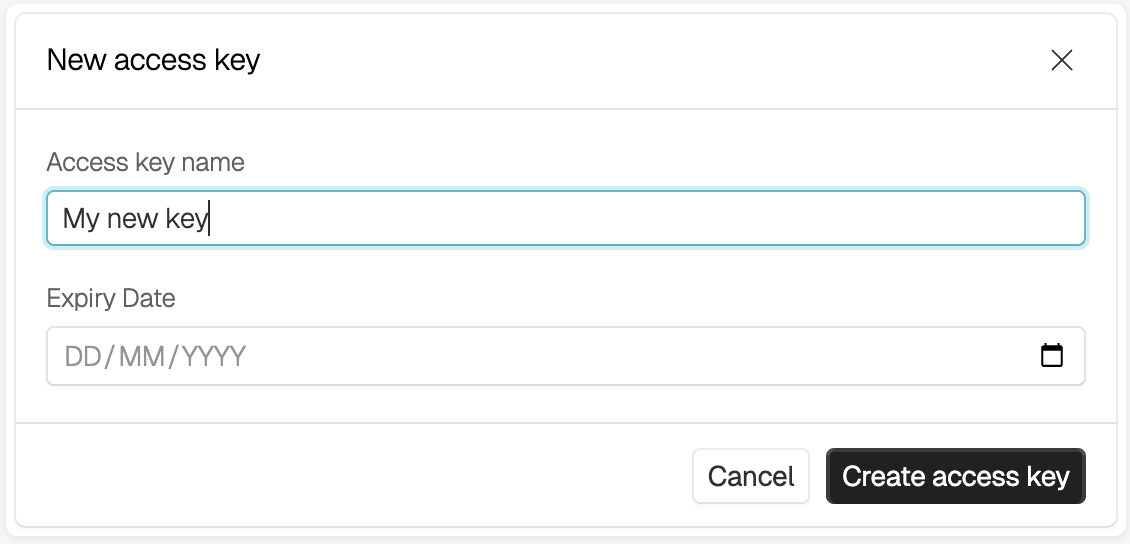
This will generate an ID and a secret, which behave as a username and password respectively.
Connection Details
Section titled “Connection Details”Use the following connection details for SFTP access:
- Server Address:
pacific.humannative.ai - Port:
22(standard SFTP port) - Username: Your access key ID
- Password: Your secret access key
File Structure
Section titled “File Structure”Each licensed dataset is organized into its own folder, grouped by provider. Below is an example file structure containing three licensed datasets:
global-print-house/├─ books-dataset/│ ├─ book1.pdf│ ├─ book2.pdf│ └─ metadata.json├─ images-dataset/│ ├─ image1.jpg│ ├─ image2.png│ └─ annotations.csvanother-provider/├─ some-other-dataset/│ ├─ data.csv│ └─ README.txtTroubleshooting
Section titled “Troubleshooting”Common Issues
Section titled “Common Issues”Authentication Failed
- Double-check your Organization ID (username)
- Verify your access key is correct and hasn’t expired
- Ensure you’re using the correct server address:
pacific.humannative.ai
Connection Timeout
- Check your internet connection
- Verify the server address and port (22)
- Some corporate firewalls may block SFTP connections
Security Best Practices
Section titled “Security Best Practices”- Never share your secret access key with others
- Use dedicated access keys for different purposes
- Store access keys securely (password managers, secure vaults)
- Set reasonable expiry dates for access keys