
Uploading files
This guide covers the different methods for uploading files to internal datasets. If you created an external dataset, your files are available once indexed from your connected cloud storage.
There are two options for uploading to Human Native: Secure File Transfer Protocol (SFTP) and via the web platform. For large volumes of data, the SFTP method is recommended. Individual files larger than 5GB must be transferred via SFTP.
Prerequisites
Section titled “Prerequisites”An internal dataset must be created first (see Getting started).
Web Platform
Section titled “Web Platform”From the web platform (app.humannative.ai), click Datasets in the sidebar and select your internal dataset. You can select the Add files header button, or directly drag and drop files and folders into the page:

Prerequisites
Section titled “Prerequisites”In order to upload files via SFTP, you will need to generate an access key. This can be done by logging into app.humannative.ai and clicking on Settings in the sidebar dropdown menu.
Generating an access key
Section titled “Generating an access key”In the Access Keys tab, click the New access key button in the top right. Fill out the form to create an access key with a name and expiry date.
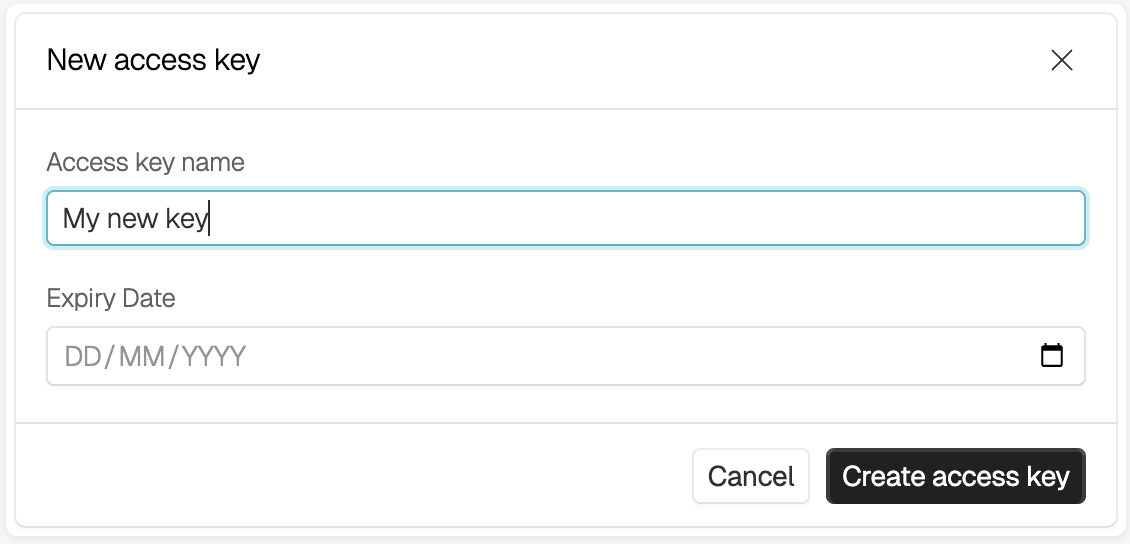
This will generate an ID and a secret, which behave as a username and password respectively.
Connecting to the SFTP Server
Section titled “Connecting to the SFTP Server”- Server Address: pacific.humannative.ai
- Username: Your access key ID.
- Password: Your secret access key.
The instructions that follow are specific to the operating system you are using.
Windows
Section titled “Windows”- Use an SFTP client like WinSCP or FileZilla.
- Enter pacific.humannative.ai in the “Host” field.
- Use your access key ID as the “Username.”
- Enter your secret access key in the “Password” field.
- Enter 22 in the “Port” field.
- Click “Login.”
MacOS/Linux
Section titled “MacOS/Linux”- Open the Terminal.
- Use the command:
sftp <access_key_id>@pacific.humannative.ai. - Enter your secret access key when prompted for a password.